How to use AI in Microsoft 365: 4 Copilot hacks that boost your company’s productivity
Discover how to use Copilot AI in Excel, Outlook, Word and Teams, and what your company needs to implement it securely and achieve a measurable return.
When you spend more time managing emails, organizing data and searching for files, you realize you could be doing much more—and that you are not making the most of your potential. You are not alone: according to Microsoft and LinkedIn’s 2024 Work Trend Index, 75% of knowledge workers already use generative AI in their daily work to lighten that load.
The figure that should concern any business leader is another one: 78% of those users bring their own AI tools to work, without their company choosing those tools or controlling what information is shared with them. The question is no longer whether your team will use artificial intelligence, but whether they will do so with secure tools that fit into their workflows and are governed by the company. That is where Microsoft 365 Copilot comes in: AI built into the applications your team already uses every day.
The good news is that you no longer need to be an IT expert to reclaim your time. Here are four highly practical Microsoft Office 365 hacks you can start using today, along with the secret to taking your productivity to the next level with artificial intelligence. Above all, we will cover what your company needs to implement it securely and measure its return.
1. Turn Messy Data into a Professional Table in Seconds (Excel)
Have you ever downloaded a sales or inventory report that looked like an impossible puzzle? Spending time formatting cells by hand is no longer efficient. Simply open Microsoft Excel and turn on Copilot. Mastering charts today takes fewer complex formulas and more strategy, and the ultimate trick starts with Ctrl + T.
Select your data and press this keyboard shortcut to turn an ordinary cell range into an Excel Table, one of the most reliable ways to unlock the full potential of Microsoft Copilot. Although Copilot can now also work with ranges that have a clear header row, using a table helps it interpret your data and provide more accurate results.
Once the table is structured, Copilot acts as your personal data analyst: you can ask it in natural language to highlight trends, create charts instantly or generate advanced formulas without writing a single formula yourself.
For example, you can type: “Show me which products had lower sales than in the previous quarter and create a chart by region.” For a sales or operations director, this means going from waiting for the analytics team’s report to getting an answer in the very meeting where the question comes up.

2. Put an End to Endless Email Threads (Outlook)
Trying to catch up on a 40-email thread in which half the team has weighed in can destroy your concentration.
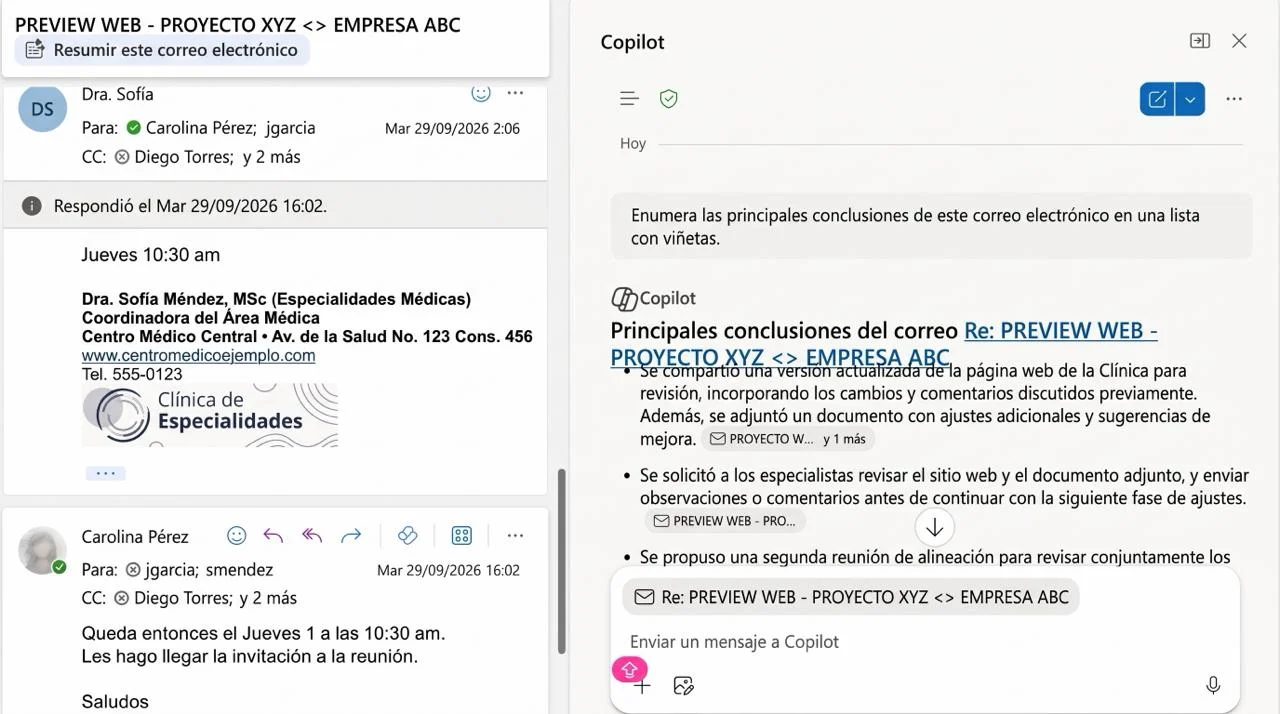
Let Copilot summarize it for you. Instead of reading the conversation paragraph by paragraph, Copilot in Outlook can summarize the entire thread in three bullet points, highlighting decisions made and who is responsible for each outstanding task.
And it does more than summarize: Copilot can also draft a reply from a few simple instructions (“confirm the delivery date and request an updated quote”) and adjust the tone for the recipient—more formal for a client or more direct for your team. For an executive receiving dozens of emails a day, that means recovering time and attention for the decisions that truly need their judgment.
3. Turn Quick Notes into Polished Executive Meeting Minutes (Word)
If you leave a meeting with key ideas scribbled in a notebook or a hastily created document, you know what comes next: turning that material into a formal report for management.
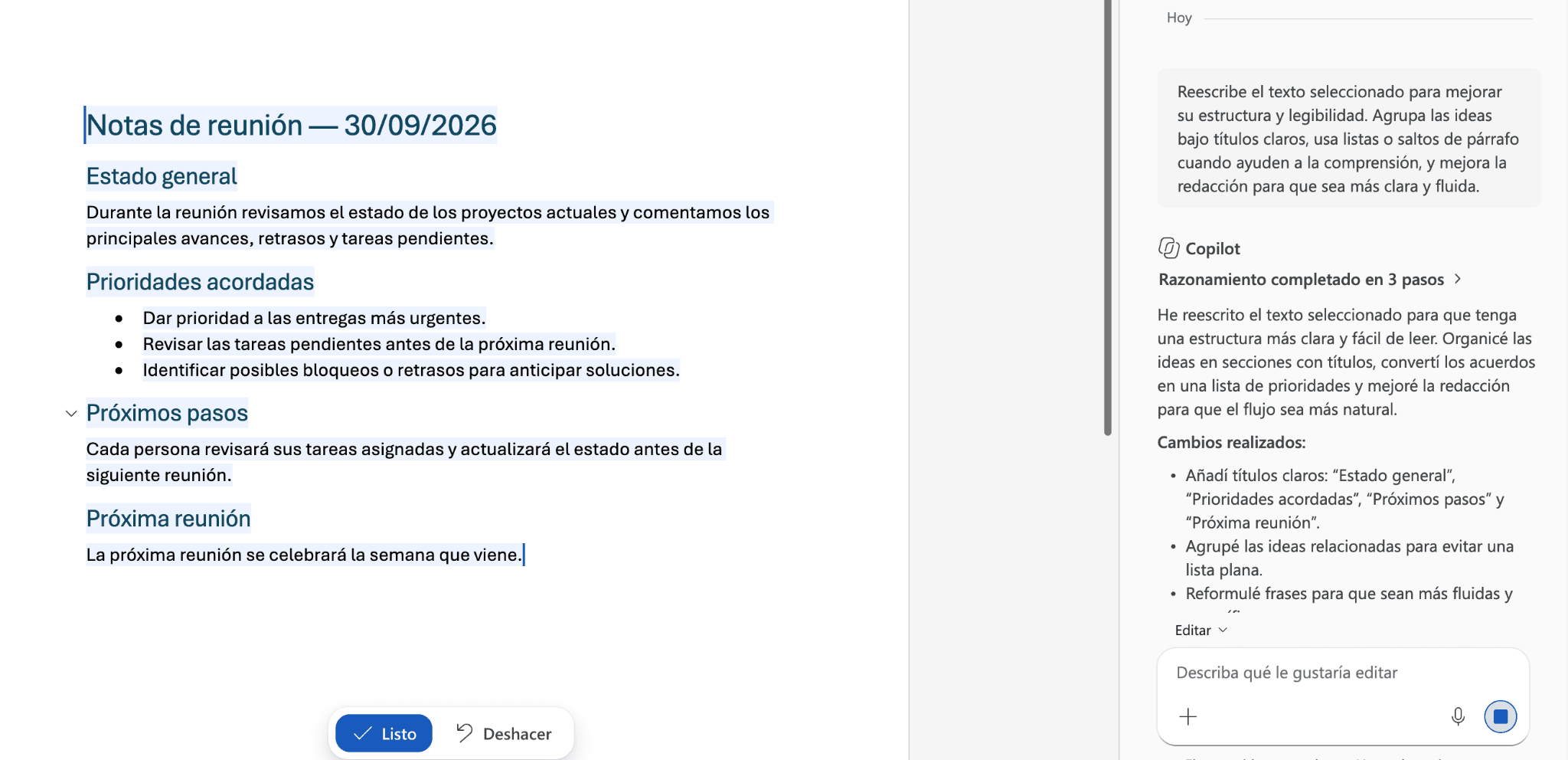
Instead, during the meeting, paste your rough notes into Word or switch on voice dictation and ask the AI: “Draft a formal, clear and persuasive executive report based on these key points.” In less than a minute, you can have a structured first draft that you only need to review, refine and personalize before sending. And you will look like a pro at organizing information.
Copilot in Word also works the other way around: it can summarize a contract, a supplier proposal or a 40-page report into the key points you need to make a decision. Human review is still essential, however: AI speeds up the first draft, but your team remains responsible for the final document.
From bullet points to polished prose:
4. Summarize Your Meetings Without Taking Notes (Teams)
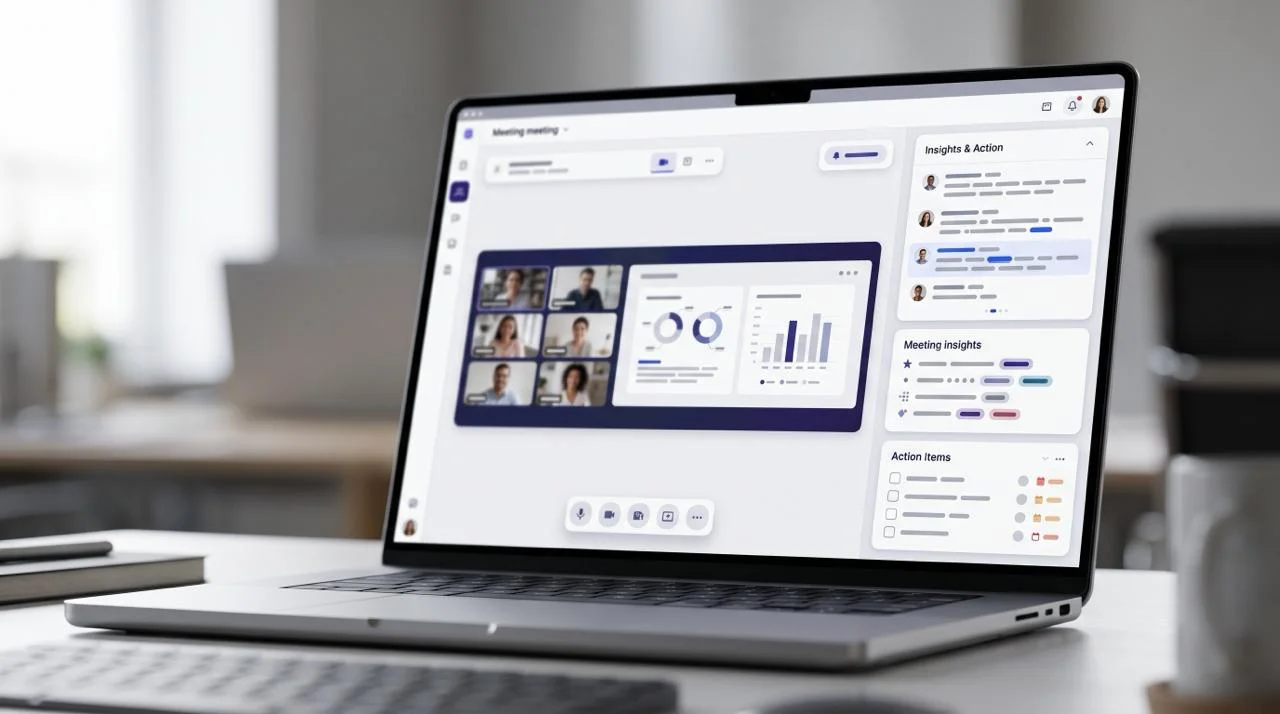
While the previous trick helps after a meeting, Copilot in Teams helps during it. With transcription enabled, you can ask it in real time, “What has been decided so far?” or “Which questions remain unresolved?” At the end, it provides a summary of key points and the tasks assigned to each participant.
For anyone joining a call late or unable to attend, this eliminates the familiar “Can you send me a summary?” And for management, it creates a clear record of agreements and owners without relying on someone to take notes.
What Your Company Needs Before Enabling Copilot
These tricks work, but only if the foundations are in place. Many companies activate licenses, get inconsistent results and conclude that AI “isn’t all that impressive.” In most cases, the problem is not the tool but its implementation. Before rolling out Copilot, review four key areas:
Licensing: Start with Those Who Will Benefit Most
Microsoft 365 Copilot is a paid per-user add-on to an eligible Microsoft 365 plan. Not every role needs a license from day one. The most cost-effective approach is usually to start with employees who handle the most email, reports and meetings, such as leadership, finance, sales and operations teams.
Permissions and Data: The Risk Few Companies Review
Copilot respects the permissions already in place in your environment: each user only sees information they have access to. The problem is that, in many companies, those permissions have not been reviewed for years. If a folder containing payroll data, contracts or customer information is shared across the entire organization, Copilot may include that information in its response to any employee who asks about it. Reviewing SharePoint and OneDrive permissions and classifying sensitive information is an essential preliminary step.
Adoption: No Training, No Return
A license that nobody knows how to use is a cost, not an investment. Adoption improves when each department learns specific use cases from its everyday work instead of receiving generic training on the tool.
Measurement: Define ROI Before You Start
Before deployment, decide what you will measure: hours spent preparing reports, customer response times, meetings with documented minutes, and decisions recorded. A 30-to-60-day pilot with a small group will give you real data to decide whether to scale and which employees to include.
Copilot Is Not the Only Powerful Tool in Microsoft 365
Copilot is highly effective within the Microsoft 365 ecosystem, but many critical business processes live in other systems: ERP, CRM, customer service platforms or proprietary applications. When you need to automate an entire workflow—for example, recording, validating and responding to a quote request without manual intervention—the answer lies in custom enterprise copilots, intelligent bots and integrations between systems.
That is when AI stops being an individual assistant and becomes an operational advantage for the entire organization.
What Is Holding You Back Is Not the Tool, but How You Use It
Knowing these shortcuts will save you time every day, but integrating intelligent AI workflows is what truly transforms an operations team into a high-performing powerhouse. The difference between simply coping with the workload and leading the market lies in knowing how to delegate operational tasks to technology.
Want your company to stop wasting hours on repetitive tasks and start making the most of Microsoft 365 and Copilot?
At ConversIA, Grupo DITESA’s artificial intelligence division, we guide your company through the entire process: we assess whether your environment is ready for Copilot, review permissions and information security, manage licensing through DITESA IT Solutions and, when Copilot is not enough, develop custom copilots and automations tailored to your processes.
Schedule a call with our team and discover how much time your organization can reclaim with properly implemented AI.
¿LISTO PARA DEJAR DE APAGAR FUEGOS?
Agenda una Discovery Session gratuita
Analizamos tu infraestructura actual, identificamos riesgos y te presentamos una propuesta concreta. Sin tecnicismos. Sin compromiso.
Agenda tu Discovery Session →

Ideas and Knowledge
Explore articles with ideas, trends, and practical learnings about technology, innovation, and digital growth.