How to get the most out of Microsoft 365
Are you only using Word and Excel? To truly leverage Microsoft 365 across an organization, it is crucial to audit how collaboration tools are adopted, which routine tasks can be automated, and how company files and permissions are organized.
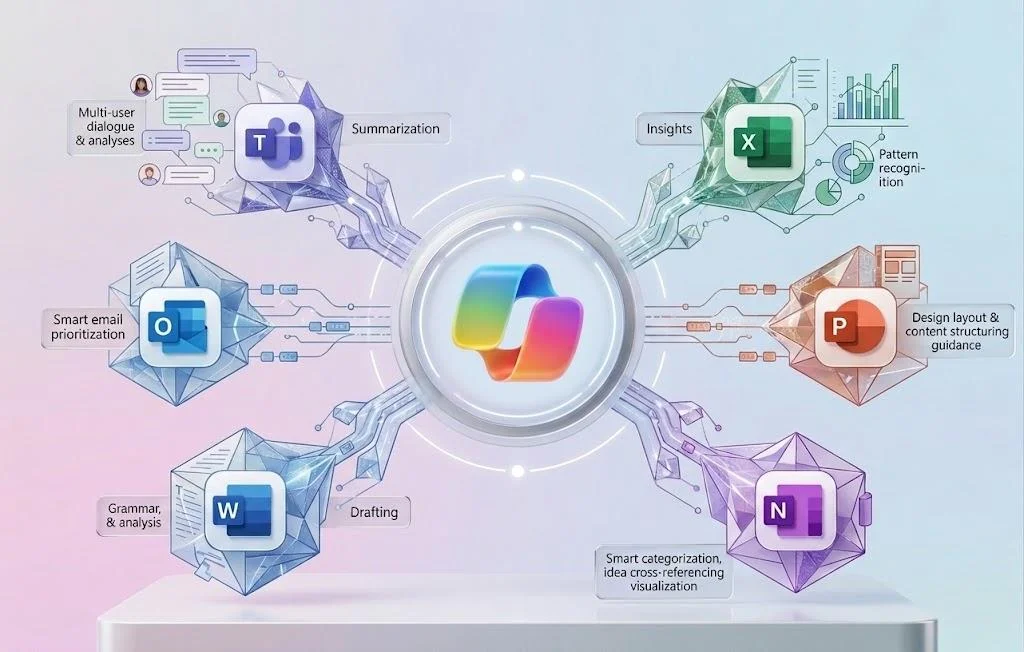
5 Signs You're Underutilizing Microsoft 365
To make the most of Microsoft 365 in a company, it is advisable to review how collaboration tools are used, which tasks can be automated, and how documents and access are organized. The first step is to identify the team's needs and check what the contracted plan allows.
If your company primarily uses Word, Excel, and Outlook, these five signs will help you detect opportunities for improvement and decide where to start.
You treat Microsoft 365 like the old Office (You still believe it is only Word, Excel, and PowerPoint)
The most common mistake is underutilizing the suite by using it only for individual tasks, leaving aside the true value of these productivity tools, which can streamline daily processes, from project management to the organization and preservation of corporate knowledge.
The solution:
Microsoft Planner:
Replace notes and follow-up emails with Kanban boards, where each task has an owner, a label, and a deadline. Organize the columns by phase, and it can sync with Teams, Outlook, and To Do. Additionally, it offers calendar views and charts to visualize each person's progress and workload in real-time, facilitating the tracking and control of each task.
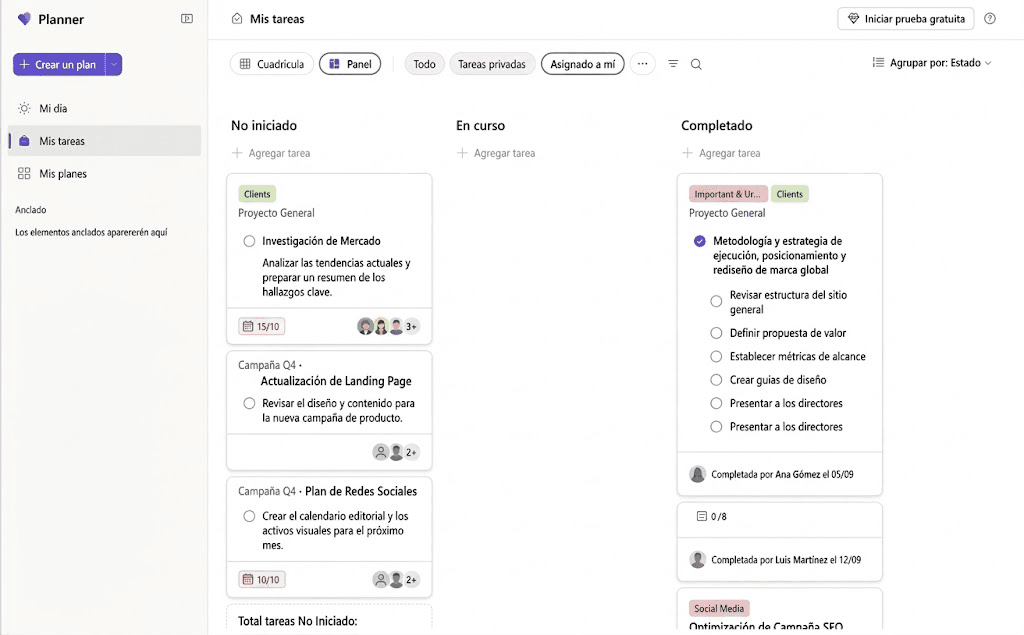
(image created with AI - M365 planner simulation)
OneNote:
Centralize manuals, project logs, and training notes in shared notebooks. By saving them in OneDrive or SharePoint, multiple users can edit them in real-time and changes sync automatically. Additionally, the entire department can access them from the web, desktop, or mobile via an invitation link.
Microsoft Loop:
Allows you to create dynamic components, such as tables, task lists, or voting polls, which can be inserted into Teams chats, Outlook emails, meetings, or documents. These are editable elements in real-time, so any change is automatically updated in all places where they are shared, regardless of the application.
You use Teams solely for chatting or video calls.
Treating Microsoft Teams as a simple substitute for WhatsApp or Zoom only results in fragmented conversations and causes important information to be scattered across chats and difficult to find later.
Implement:
Thematic channels and project tabs: Organize the company into specific teams and channels by project or area. In each channel, you can integrate tabs with key spreadsheets, the Planner board, and the corresponding SharePoint folder. This way, all the necessary information and tools to work are centralized in one place.
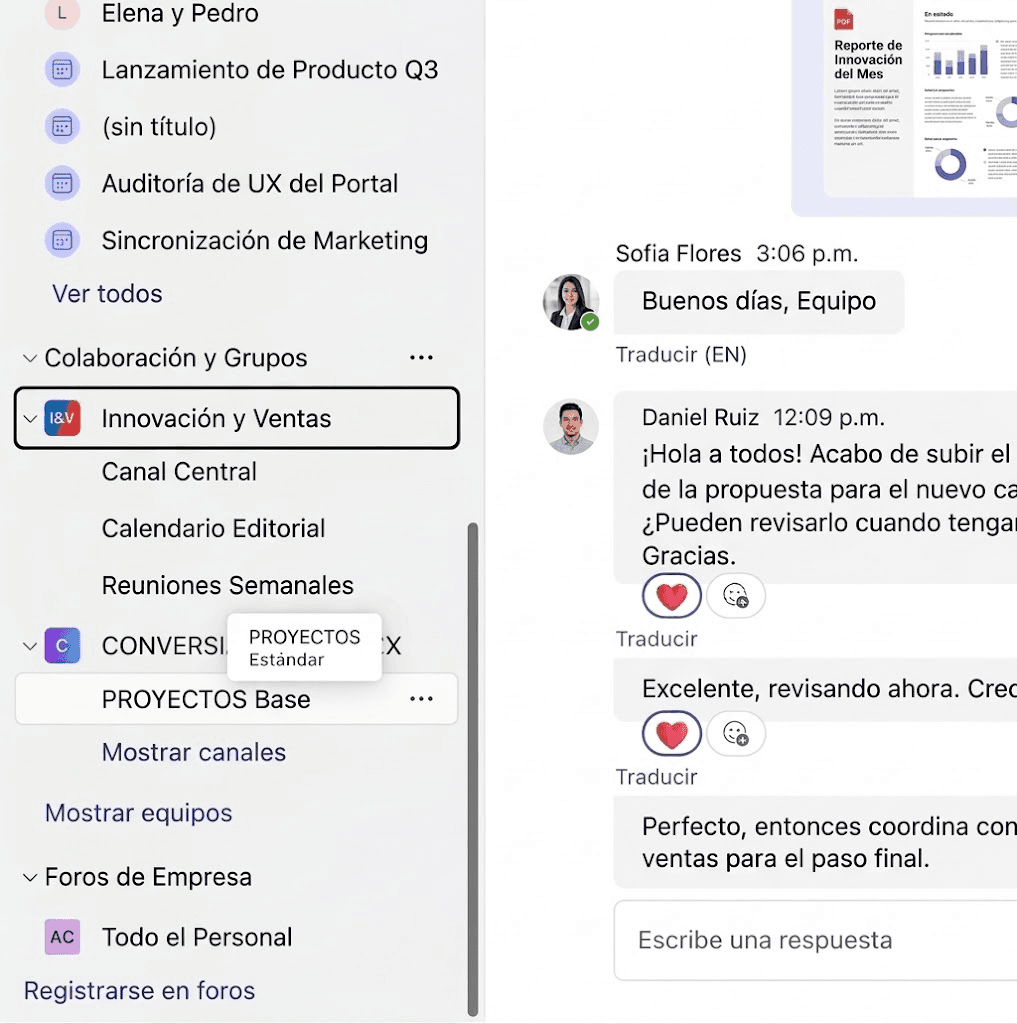
(image created with AI - M365 teams simulation)
You repeat tasks that you could automate
When collaborators have to download invoices from emails to save them in a folder or manually notify a colleague when a client completes a form, time is wasted on repetitive tasks that could be automated.
Automate:
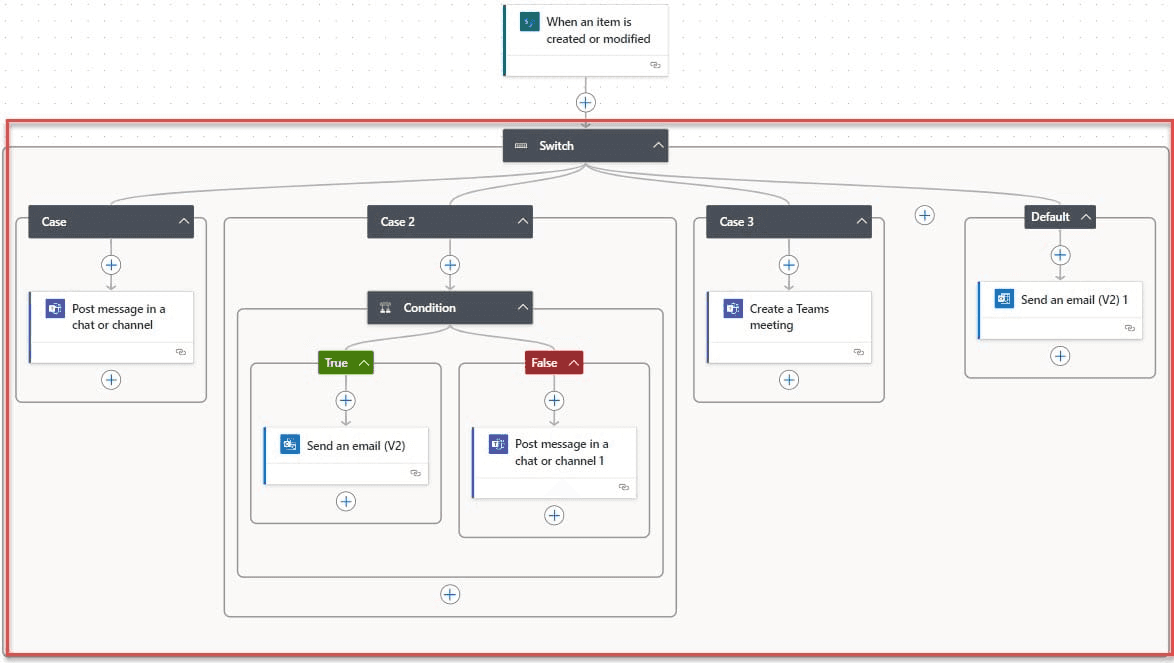
Power Automate, allows you to create automated flows without the need for complex programming. For example:
Automatically save attachments from key emails to a specific SharePoint library.
Send an alert to a Teams channel when a prospect completes a form in Microsoft Forms.
Create expense approval requests that can be reviewed and approved directly from Teams.
The availability of these functions depends on the contracted plan, assigned licenses, and organizational settings. Before implementing a solution, review its requirements.
You are not integrating Artificial Intelligence into your workflow
Ignoring AI capabilities within the suite can cause the team to miss opportunities to save time and streamline tasks, while other teams are already using these tools to summarize information and support content writing.
Don't stay behind and:
Use the intelligent assistant Microsoft Copilot integrated into your work tools to save time and facilitate day-to-day tasks:
In Teams: Generate meeting summaries, identify agreements, and organize pending tasks with their owners.
In Outlook: Write draft responses, adjust the tone of messages, and summarize long email threads.
In Excel and Word: Convert notes into structured proposals and analyze trends in data tables using natural language instructions.
Your documents and permissions are disorganized
The lack of storage policies can lead to confidential information being shared without proper control, increasing operational risks.
Apply:
Establishing role-based permissions within SharePoint and avoiding the use of open-access links are good practices within the cloud. Additionally, you can use version history to recover previous files in case of errors or unwanted changes.
Enable Multi-factor Authentication (MFA) for organization accounts using Microsoft Authenticator or security keys, adding an extra layer of protection against unauthorized access.
If you identified several of these signs in your company, there are probably opportunities to make better use of the tools you already have available in Microsoft 365. Now,
How can you measure the actual use of your productivity tools?
Periodically monitor these indicators:
Adoption Score: An official metric that allows you to know the level of adoption of Microsoft 365 in areas such as collaboration, meetings, communication, teamwork, and mobility.
Exchange vs. Teams Activity: Identify if internal communication continues to concentrate on email or if teams are taking advantage of Teams channels.
Cloud Volume: Measures the amount of active files in SharePoint compared to information that still remains scattered in local storage.
These indicators allow you to understand where the company currently stands and which areas need attention. The next step is to convert this data into concrete actions: moving from theory to actual execution.
From theory to actual execution
Attempting to transform the way the entire company works at the same time can generate resistance to change and cause some licenses to go unused. Therefore, an effective adoption can be structured into three progressive stages:
Phase 1: Environment audit and digital governance. Before implementing new dynamics, the current configuration of the tenant is reviewed: access policies, organization of Teams channels, and permissions of SharePoint libraries.
Phase 2: Tactical adoption and practice improvement. The sending of attachments is replaced by co-authoring in OneDrive and SharePoint, and teams are trained to manage projects using Planner and thematic channels.
Phase 3: Automation of Quick Wins. One or two manual, time-consuming processes are identified, such as approvals or data capture in Forms, and automated using Power Automate.
Aligning these phases with the real needs of each department allows progress to be made gradually, without interrupting daily operations.
Not sure how to apply these 3 phases in your company?
In a 30-minute strategic discovery session (Discovery Call) with our specialists, we review the status of your environment, identify opportunities for improvement, and define a prioritized technical roadmap to make better use of your tools and licenses.
[Schedule a free diagnostic call →]
¿LISTO PARA DEJAR DE APAGAR FUEGOS?
Agenda una Discovery Session gratuita
Analizamos tu infraestructura actual, identificamos riesgos y te presentamos una propuesta concreta. Sin tecnicismos. Sin compromiso.
Agenda tu Discovery Session →


Ideas and Knowledge
Explore articles with ideas, trends, and practical learnings about technology, innovation, and digital growth.